How to Automatically Categorize Emails With AI
By Srivatsa · 2026-07-05
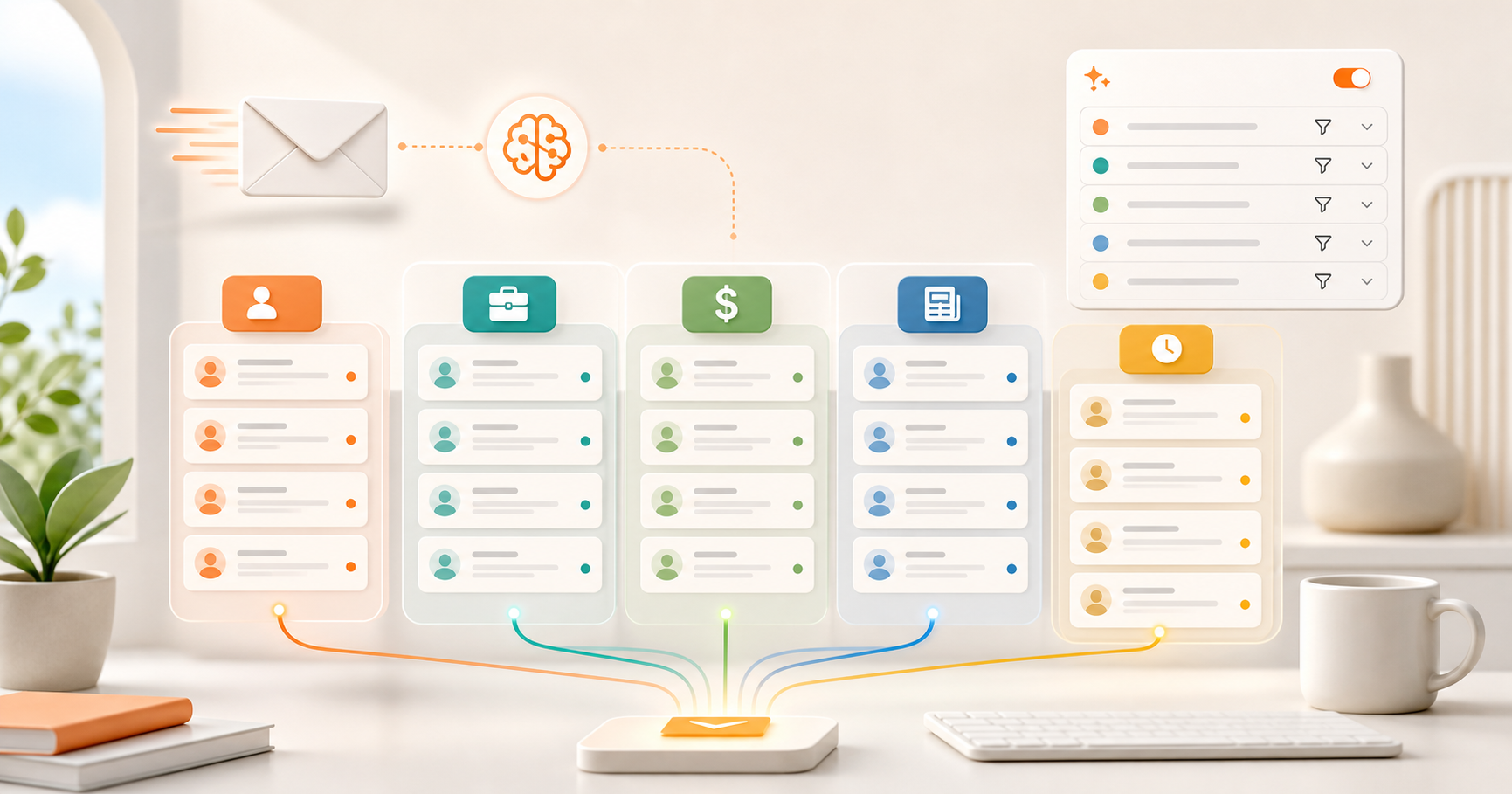
A practical guide to using AI email categorization to separate leads, customers, finance, newsletters, and follow-ups before your inbox turns into a daily guessing game.
The goal is not more labels. It is less guessing.
Most people try to organize email by adding more folders, more rules, and more color-coded labels. That can work for a while. Then the inbox gets bigger, the rules get brittle, and important messages still end up beside newsletters, receipts, calendar alerts, and random product updates.
AI email categorization is useful because it can look at the meaning of a message, not just the sender or a keyword. A good system should understand whether an email is a lead, a customer issue, a finance thread, a hiring conversation, a newsletter, or a follow-up that needs a human response.
That matters most for founders, creators, consultants, and small teams. Their inbox is not just communication. It is sales, support, operations, partnerships, payments, and reputation in one feed.
If you want a product built around this workflow, Replyless has a dedicated AI email categorization layer that works with focused inbox views across Gmail, Outlook, and Zoho Mail.
What AI email categorization actually does
Traditional filters usually follow fixed rules:
- If the sender contains a domain, apply a label.
- If the subject contains a phrase, move it to a folder.
- If Gmail or Outlook thinks it is important, put it near the top.
Those rules are useful, but they are shallow. They do not always know the difference between a customer escalation and a marketing newsletter from the same company. They also break when senders change domains, subject lines get vague, or one sender writes about many different things.
AI categorization adds a second layer. It can classify email by context, intent, and likely workflow:
- Is this something that needs a reply?
- Is this a lead, existing customer, invoice, support request, newsletter, or internal update?
- Should this live in the main inbox or a focused queue?
- Is this low-value noise that can be reviewed later?
- Does this belong to the active work account, personal account, or client mailbox?
That last point is easy to miss. If you manage multiple accounts, categories should stay account-aware. A finance label in your personal inbox should not leak into a client inbox. Replyless treats connected inboxes as separate workflows, so sorting stays scoped to the active account.
The best categories are based on action, not neatness
The biggest mistake is building categories that look tidy but do not change what you do next.
Bad categories sound like:
- Miscellaneous
- Updates
- Important
- Work
- Other
Better categories tell you how to process the queue:
- Needs reply
- Leads and inquiries
- Existing customers
- Finance and invoices
- Partnerships
- Hiring
- Newsletters and reading
- Receipts and app alerts
- Follow-ups
The difference is simple. A tidy label describes the email. An action label tells you what to do with it.
If your inbox is high volume, start with five categories: customers, leads, finance, follow-ups, and low-priority updates. That is enough structure to reduce scanning without turning setup into a project.
For teams and operators, AI split inboxes are often more useful than one master label list because each category becomes a focused work queue.
How to set up AI categorization without overbuilding it
You do not need a perfect taxonomy on day one. You need a small system that catches the most expensive misses.
1. Start with the emails you cannot afford to miss
Make a short list of messages that create real risk or revenue:
- Customer complaints
- Sales leads
- Investor or partner threads
- Payment and invoice messages
- Hiring conversations
- Brand deals or sponsorships
- Time-sensitive follow-ups
These should become your first AI categories. The goal is to protect valuable conversations before optimizing the rest of the inbox.
2. Separate work queues from reference queues
Some emails require action. Others are useful only when you have time.
Action queues include leads, customers, support, finance, and follow-ups. Reference queues include newsletters, reports, receipts, product updates, and notifications.
Do not mix them. If a newsletter sits beside a customer issue, your brain has to re-prioritize from scratch every time you scan the inbox.
3. Use prompts for categories that rules cannot catch
Simple sender rules are still useful. But some categories need nuance.
For example, a creator may want a category for serious sponsorship conversations, but not every email with the word "collaboration" belongs there. Some are affiliate spam. Some are agency outreach. Some are real paid opportunities.
This is where prompt-based categories help. You can describe the pattern you want, then let the AI combine sender, subject, body context, and past corrections. Replyless supports prompt-based rules for custom split inboxes when default categories are too generic.
4. Correct the system when it is wrong
AI sorting should get better when you fix mistakes. If a lead lands in newsletters, move it. If an invoice lands in general updates, correct it.
The point is not to trust the AI blindly. The point is to reduce the number of decisions you make manually every day.
5. Review categories in batches
Once email is categorized, process it in the order that matches your day.
A founder might start with customers, then leads, then finance, then hiring, then newsletters. A creator might start with sponsorships, then agencies, then fan replies, then platform alerts. A consultant might start with current clients, then new inquiries, then invoices, then admin.
The same inbox volume feels lighter when you are not switching context every message.
AI categorization vs Gmail labels vs Outlook Focused Inbox
Gmail labels and Outlook Focused Inbox are helpful defaults, but they usually stop at broad organization. They can separate obvious promotions or estimate importance, but they are not always built around your exact workflow.
AI categorization is stronger when you need:
- Custom categories for your business model
- Multiple connected accounts with separate context
- Labels that distinguish intent, not just sender
- Follow-up visibility
- Cleaner handoff into drafts, summaries, and reminders
For example, one founder may want "investors" as a top-level queue. Another may not. One creator may want "paid brand deals" separate from "PR samples." A normal inbox does not know that difference out of the box.
Replyless is designed around that more practical structure: sorting, split inboxes, summaries, drafts, cleaner workflows, and done states in one place. If categorization shows you what matters, AI email drafts help you move through the replies faster once you are ready.
What competitors tend to get right
The AI email category is moving quickly, and several tools have useful ideas.
Superhuman is strong on speed and keyboard-driven email workflows. Spark has a broad email client with smart inbox features and an AI assistant. Canary Mail leans into AI and privacy-focused email. Jace presents a more assistant-like workflow with AI labels, drafts, and automations.
The gap for many users is not whether a tool has AI. It is whether the AI helps them process the inbox in the same way their work actually operates.
For Replyless, the sharper angle is focused email operations: separate the work, protect the important conversations, draft with context, summarize long threads, and keep follow-ups visible without forcing every user into the same generic tabs.
A simple AI categorization framework
If you are setting up categories from scratch, use this framework:
Value
Does this email affect revenue, customers, reputation, hiring, finance, or delivery?
If yes, it should probably live in a high-priority queue.
Action
Does this email need a reply, review, payment, approval, reminder, or archive?
If yes, the category should make that next step obvious.
Timing
Does this need attention today, this week, someday, or never?
Newsletters and reports may be useful, but they should not interrupt urgent work.
Account
Which inbox does this belong to?
If you manage Gmail, Outlook, Zoho, or client inboxes, each account needs its own context. Shared labels across unrelated accounts create confusion fast.
Confidence
Is the AI confident, or should the email stay visible for review?
For sensitive categories like finance, legal, customer escalations, and hiring, it is better to surface questionable messages than hide them.
Where AI categorization helps most
AI categorization is most useful when your inbox contains multiple jobs at once.