AI Inbox Triage: How to Prioritize Email Without Missing Important Work
By Srivatsa · 2026-07-29
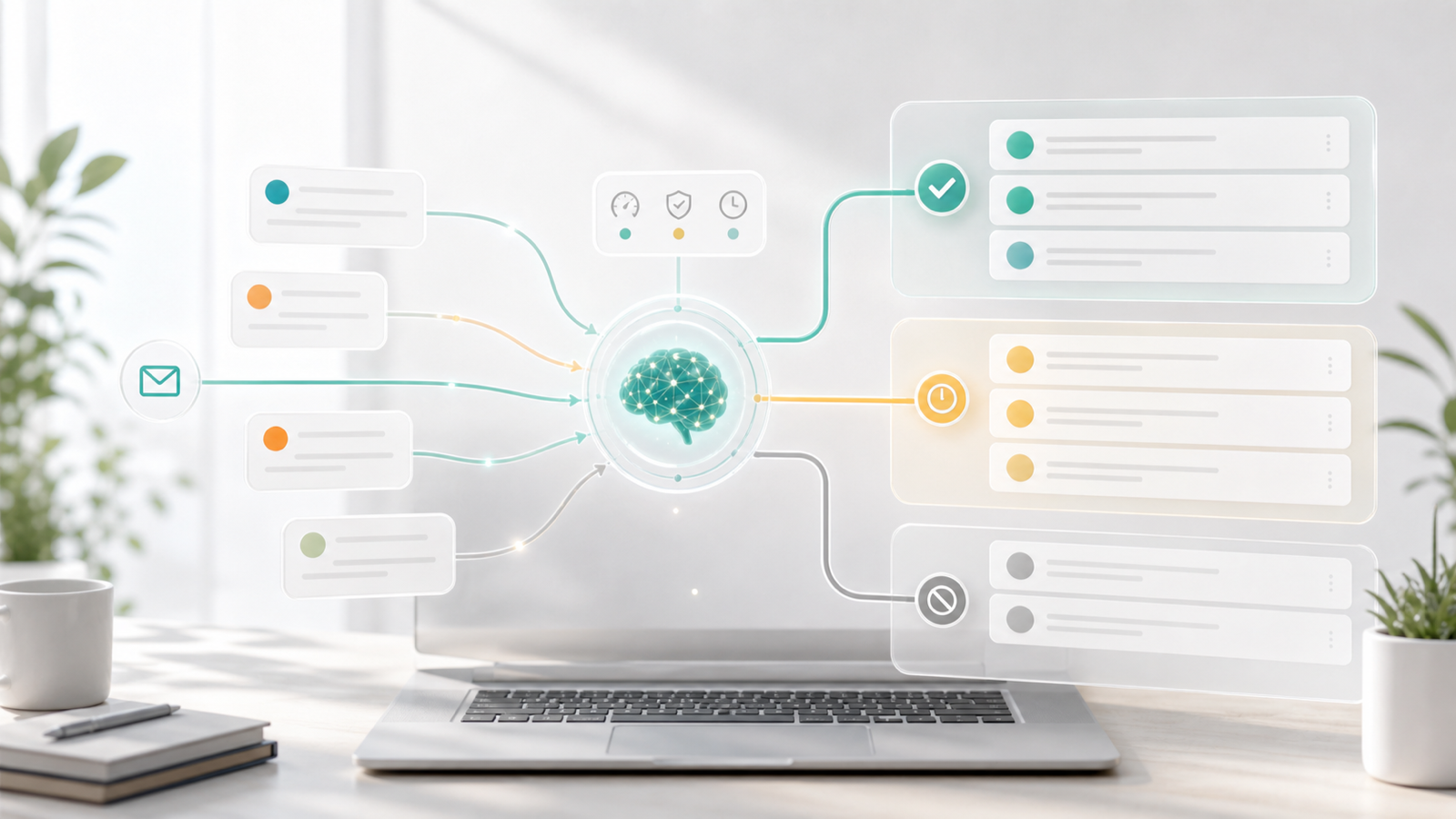
A practical guide to using AI inbox triage to separate urgent replies, waiting threads, noisy senders, and deep-work email across Gmail, Outlook, and Zoho.
Most people do not need another inbox rule.
They need a better way to decide what deserves attention.
That is the real promise of AI inbox triage. Not just "sort my email." Not just "write a faster reply." A good triage workflow helps you open your inbox and immediately understand what needs a response, what is waiting on someone else, what can be cleaned up, and what should stay out of your main view.
For founders, operators, consultants, creators, agencies, and small teams, this matters because email is not one kind of work. It is sales, support, finance, hiring, partnerships, customer updates, internal decisions, newsletters, alerts, receipts, and random noise all arriving in the same place.
AI inbox triage works best when it separates those messages by action, not just by sender or keyword.
This guide explains what AI inbox triage is, how to build a practical triage system, what to look for in a tool, and where Replyless fits if you want a calmer inbox without putting risky replies on autopilot.
What AI inbox triage means
AI inbox triage is the process of using AI to classify incoming email by what should happen next.
That can include:
- messages that need a reply today
- threads that can wait
- conversations where you are waiting for someone else
- customer or client messages
- sales and partnership opportunities
- finance, invoices, and admin
- newsletters and automated updates
- noisy senders that should be cleaned up
- long threads that need a summary before you act
Traditional email filters usually work from obvious patterns: sender, subject line, keywords, labels, or folders.
AI triage can be more flexible because it can look at intent. A message can mention "pricing" without being a real sales lead. A support issue can sound casual but still need urgent attention. A finance thread can be buried inside a forwarded conversation. A customer message can arrive from a personal address instead of a company domain.
The goal is not to make the inbox look tidy for its own sake.
The goal is to make the next decision obvious.
Why normal inbox systems break down
Most inbox systems start simple:
- star important messages
- archive old threads
- make a few folders
- add a newsletter filter
- snooze what you cannot answer now
That works until the inbox becomes a workspace.
Once email carries real business outcomes, the old system starts to leak. Important threads stay mixed with low-value updates. Follow-ups depend on memory. Long conversations require rereading. Multiple accounts create context switching. Manual rules become too brittle to maintain.
The result is not only inbox clutter. It is decision fatigue.
You spend energy asking:
- Is this important?
- Do I need to reply?
- Did I already answer this?
- Is someone waiting on me?
- Is this safe to archive?
- Which account does this belong to?
- Should this be a customer, lead, finance, or support workflow?
AI inbox triage should reduce that decision load.
A useful triage system has four lanes
The simplest way to think about inbox triage is to split email by action.
You can start with four lanes.
1. Reply now
This is for email where you are the blocker.
Examples:
- a customer asks a direct question
- a lead wants pricing or a next step
- a client needs approval
- a teammate asks for a decision
- a partner needs confirmation
- a hiring thread needs a response
This lane should stay small. If everything becomes "reply now," triage has failed.
Replyless AI email categorization is useful here because it can help identify emails by intent and urgency instead of relying only on keywords. Pairing that with AI email drafts lets you move from "this needs me" to "here is a draft I can review."
2. Waiting
This is for threads where the next move is not yours yet.
Examples:
- a client owes feedback
- a lead said they would review next week
- a vendor is checking internally
- an invoice is pending approval
- a support issue is waiting on more information
These messages should not keep haunting the main inbox. But they also should not disappear.
Replyless reminders and done help with this workflow. You can get the thread out of sight for now and bring it back when it actually needs attention.
3. Review later
This is for messages that may matter, but not during your high-focus reply window.
Examples:
- newsletters you actually read
- investor updates
- product changelogs
- low-urgency community messages
- internal notes that do not need a reply
- non-urgent account notifications
The mistake is letting review-later email sit beside reply-now email. That makes the whole inbox feel urgent even when most of it is not.
Replyless AI split inboxes help turn these categories into focused views so you can process one type of work at a time.
4. Noise
This is for messages that create volume without creating value.
Examples:
- unread promotional email
- app alerts you never act on
- cold outreach that does not fit your business
- old newsletters
- duplicate reports
- senders that consistently bury useful email
Noise needs a different workflow from important email. You want bulk actions, sender review, unsubscribe, archive, delete, or block, but you still want enough control to avoid deleting something valuable by mistake.
Replyless email cleaner is built for this part of the system: identify noisy senders and clean up clutter without treating every message like trash.
What to look for in an AI inbox triage tool
A good AI inbox triage tool should do more than add an "important" label.
Use this checklist before choosing one.
1. It should classify by intent, not just keywords
Keyword rules are fragile.
"Quick question" can be a support issue, a sales opportunity, or a low-priority request. "Invoice" can be a receipt, an unpaid bill, a client question, or an automated reminder. "Partnership" can be valuable or irrelevant.
Look for a tool that can understand the purpose of the email and route it into the right workflow.
The best triage output is simple:
- what this email is about
- whether it needs you
- when it matters
- where it belongs
2. It should summarize before you reply
Fast triage is useful, but fast triage without context can still create mistakes.
Long threads need a short briefing before you respond. The summary should make clear:
- what happened so far
- what the sender wants now
- what decisions were already made
- whether anything is still open
- who owns the next step
Replyless thread summaries help with this because the point is not to summarize for decoration. The point is to make the next action easier.
3. It should keep drafts review-first
AI triage often leads naturally into AI drafting.
That is useful. But for business inboxes, review-first drafting is usually the safer default.
An assistant can prepare a reply, suggest a tone, and pull context from the thread. You still approve the final message.
That matters for:
- customer complaints
- sales negotiations
- refunds
- scope changes
- finance questions
- hiring
- sensitive personal relationships
In other words, AI should reduce the blank-page work without taking over judgment.
4. It should support custom work lanes
Every inbox has a different shape.
A founder may care about customers, investors, hiring, finance, and partnerships. A creator may care about brand deals, community replies, invoices, PR, and platform updates. An agency may care about leads, client approvals, subcontractors, support, and billing.
Static folders are rarely enough.
Replyless custom split inboxes let you describe the kind of email you want in a focused view. That is easier to maintain than a long list of brittle filters.
5. It should respect multiple accounts
Many users do not have one inbox anymore.
They have a personal Gmail account, a work Gmail account, an Outlook account, a Zoho Mail account, a shared address, or client inboxes.
AI triage should stay account-aware. A message from one account should not borrow context from another. A support inbox should not be mixed with a personal inbox. A client account should not be sorted using assumptions from your founder inbox.
Replyless supports multiple email accounts across Gmail, Outlook, and Zoho Mail workflows while keeping connected inboxes scoped.
6. It should make cleanup part of triage
Cleaning the inbox is not separate from triage.
If noisy senders keep flooding the same view where customer and sales messages live, your triage system will keep breaking.
The better pattern is:
- Identify repeat clutter.
- Clean or unsubscribe from noisy senders.
- Route lower-priority messages into their own view.
- Keep reply-now messages small and visible.
That is how cleanup supports focus instead of becoming a one-time purge.
How AI inbox triage tools compare
Different tools approach inbox triage from different directions.
Superhuman is strongest for people who want a premium, speed-first email client. It is known for shortcuts, split inboxes, reminders, snippets, read status, and AI features across Gmail and Outlook workflows. It can be a good fit for power users who want to process email quickly inside a polished client.
Canary Mail positions itself as a privacy-focused AI email client. It emphasizes AI writing, summaries, search, categorization, unsubscribe support, multi-account workflows, and security features. It can fit users who want an email app with AI assistance across devices.
Spark focuses on a polished email app experience with smart inbox organization, newsletters and notifications handling, snooze, send later, and AI writing or summarization features. It is useful for people who want a cross-platform email client with productivity features built in.
Jace and Slashy are closer to the newer agent-style category. Their positioning is more about AI doing email work with drafts, rules, labeling, follow-ups, or broader workflow assistance. That can be attractive if you want a more agentic inbox layer, but buyers should still check how approval, account scoping, and sensitive replies are handled.
Replyless is built around a practical triage operating system: AI categorization, split inboxes, prompt-based custom views, summaries, drafts, snippets, reminders, done workflows, email cleaner, and multiple account support.
The difference is the center of gravity.
Some tools lead with speed. Some lead with a new email client. Some lead with agents. Replyless leads with making the inbox calmer, more scoped, and easier to act on.
A simple AI inbox triage workflow
If you want to set up AI inbox triage this week, start small.
Step 1: Define what deserves your main inbox
Your main inbox should not be a catch-all.
Decide what belongs there:
- customer questions
- active sales conversations
- urgent client replies
- time-sensitive finance threads
- hiring or partnership messages that need action
Everything else should have another lane.
Step 2: Create focused views for recurring work
Start with the views you will actually use.
Good starting views:
- Reply Today
- Customers
- Leads
- Finance
- Hiring
- Waiting
- Newsletters
- Automated Alerts
- Noise
Do not create twenty views on day one. A triage system should make the inbox easier, not turn it into another project.
Step 3: Add reminders for anything waiting
The main inbox should hold current work.
Waiting threads should come back when they need action.
Use reminders for:
- proposal follow-ups
- unpaid invoices
- pending approvals
- customer check-ins
- unresolved support threads
- hiring follow-ups
This keeps the inbox clear without relying on memory.
Step 4: Use summaries for complex threads
Before you reply to a long or high-stakes thread, summarize it.
This is especially useful for:
- multi-person conversations
- long customer histories
- sales negotiations
- support issues
- agency or consultant client threads
- finance or legal-adjacent email
A summary makes the reply faster, but more importantly, it reduces the chance that you miss context.
Step 5: Draft, review, then send
Use AI drafts for speed.
Keep review for judgment.
The best workflow is not "AI sends everything." It is:
- AI identifies what needs you.
- AI summarizes the thread.
- AI drafts a reply.
- You approve, edit, or reject it.
- The thread moves to done, waiting, or follow-up.
That gives you the time savings without making the inbox feel out of your control.
Common mistakes to avoid
AI inbox triage gets weaker when the system is too vague.
Avoid these mistakes.
Mistake 1: Treating priority as one label
"Important" is not enough.
Important to whom? Important when? Important because it needs a reply, a reminder, a cleanup action, or a summary?
Better labels describe the action.
Mistake 2: Mixing newsletters with reply work
Some newsletters are useful. That does not mean they belong beside customer replies.
Move reading into a separate lane so the main inbox stays focused.
Mistake 3: Automating replies before fixing triage
Drafting faster helps, but only after you know what deserves a reply.
If the inbox is still messy, AI drafts can simply help you process the wrong messages faster.
Mistake 4: Ignoring account boundaries
If you manage multiple inboxes, keep them scoped.
The triage system for a personal inbox should not behave like the system for a customer support inbox. The same is true for a client inbox, agency inbox, creator inbox, or founder inbox.
Mistake 5: Cleaning once and calling it done
Inbox cleanup is not a one-time event.
After the first cleanup, you still need routing, reminders, summaries, and custom views. Otherwise the noise returns.
When Replyless is a good fit
Replyless is a good fit if your inbox problem is not only volume.
It is especially useful if you want to:
- separate important email from noise
- create AI-powered split inboxes
- build custom inbox lanes with natural-language rules
- summarize long threads before replying
- generate review-first drafts
- keep follow-ups from slipping
- clean noisy senders
- manage multiple Gmail, Outlook, and Zoho accounts
It is not trying to turn every email into an autonomous send. The better use case is calmer triage, faster context, and easier decisions.
That is what most busy inboxes need first.
Final thought
AI inbox triage is not about making email look cleaner for a day.
It is about building an inbox that shows the right work at the right time.
Start with action-based lanes: reply now, waiting, review later, and noise. Add summaries when context matters. Use drafts when writing is the bottleneck. Keep review where judgment matters.
If you want that kind of workflow across Gmail, Outlook, and Zoho, Replyless brings the triage pieces together: categorization, split inboxes, custom views, summaries, drafts, reminders, snippets, cleaner workflows, and multiple account support.
The best inbox is not empty because everything was deleted.
It is calm because the next action is clear.